
Appearance
Phengos — API Key Security Guide
Your API key is the password to your AI provider account: anyone who has it can make requests billed to you and see your usage. This guide covers how Phengos protects your key, the ways keys get compromised, how to rotate them, and what to do if one leaks.
See also: PhengosQR for safe key import on Android, and the Error Reference for authentication errors.
How your key is stored
Phengos stores your API key only in your operating system's secure credential store:
- Windows — Windows Credential Manager (encrypted by your login password)
- Linux — GNOME Keyring / KWallet (encrypted by your login password)
- Android — Android Keystore (hardware-backed on modern devices; on phones with StrongBox the key material never leaves the secure chip)
Your key is never written to a plain text file, a log file, a configuration file, a project file, or any exported run record.
If no credential store is available (Linux). On a Linux desktop without a running secret service — no GNOME Keyring or KWallet, as can happen on minimal or unusual desktop environments — Phengos has nowhere safe to persist the key, so it will not save it to disk. The key works for the current session, but you'll need to enter it again on the next launch. The fix is to install/enable a keyring for your desktop (for example,
gnome-keyringor KWallet). Phengos deliberately does not fall back to writing the key somewhere insecure. (This is also covered in the FAQ.)
In memory, the key is handled only for the duration needed to prepare and send a provider request, then cleared after use. On desktop, Phengos is designed to require strong cryptographic support and to avoid silently falling back to weak key protection.
On Android, QR import is local-only and avoids clipboard, keyboard, and third-party QR scanner exposure. Current Android builds use temporary in-memory handling while the key is being imported or used, and this area is planned to be upgraded to stronger AES-256-GCM-based protection. Android's at-rest key storage remains the Android Keystore.
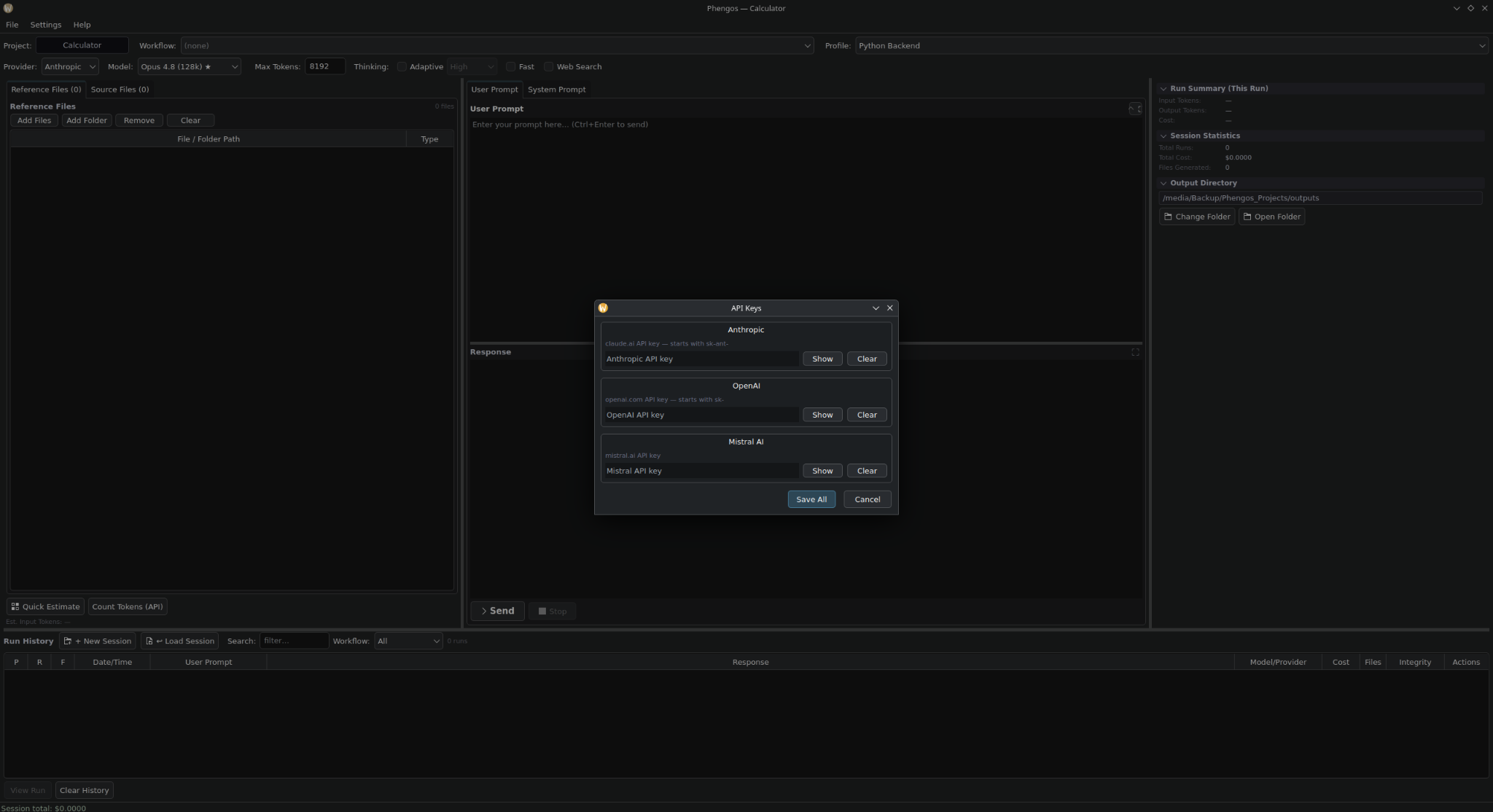
API keys are entered into masked fields and saved to the operating system credential store.
Ways a key gets compromised (and what helps)
1. Clipboard exposure. Copying a key routes it through the clipboard, which other apps (especially on Android) and clipboard managers can read. Phengos: on Android, warns against pasting and offers QR import that bypasses the clipboard; on desktop, masks the key field. You: use QR import on Android; on desktop, paste quickly and clear clipboard history after saving the key.
2. Keyboard logging (Android). Mobile keyboards may send keystrokes to their vendor for prediction. Phengos: marks the key field as sensitive input to reduce (not eliminate) logging; QR import bypasses the keyboard entirely. You: always use QR import on Android — never type a key on a phone.
3. Third-party QR scanners. Many scanner and built-in camera apps upload scanned content to external servers for processing, logging, analytics, or "smart" features.
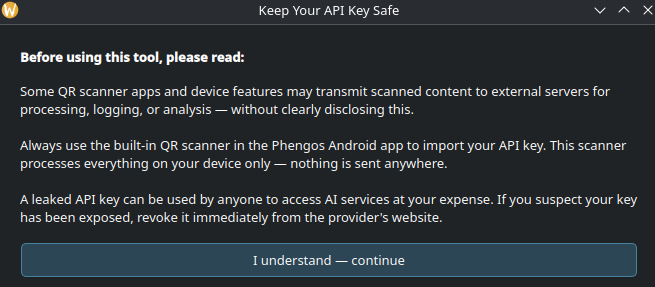
Phengos: the built-in Android scanner decodes locally on-device and sends nothing. You: only ever scan your key with the built-in Phengos scanner; generate the QR with PhengosQR on your computer.
4. Screen recording / screenshots. A visible key can be captured by a recorder, remote session, or video call. Phengos: the key field is masked by default, with an optional show/hide toggle. You: never share your screen while a key is visible.
5. Compromised device. Malware with elevated privileges may read the credential store or memory during use. Phengos: Android Keystore is hardware-backed (StrongBox devices resist extraction even with root); desktop stores encrypt with your login password. You: keep OS/apps updated, use a strong login password, enable full-disk encryption (BitLocker / LUKS / Android default), and avoid untrusted apps.
6. Accidental sharing. Keys get committed to version control, pasted into chats, or caught in screenshots. Phengos: keeps keys out of project and config files and never prints the full key in logs, exports, or run records. You: never put a key in a chat, email, or document; if you develop, ensure .gitignore excludes any credential-bearing files.
7. Provider account compromise. A weak/reused password or phishing can expose every key on the account. You: use a strong, unique password per provider, enable two-factor authentication, and use a password manager.
Key rotation
Rotation means replacing your current key with a new one and deleting the old one. Even with no known compromise, regular rotation limits the damage window if a key was quietly stolen.
| Usage level | Rotate every |
|---|---|
| Personal / light use | 6 months |
| Regular daily use | 3 months |
| After any security event | immediately |
| After sharing a device | immediately |
| After using a new/untrusted app | immediately |
How to rotate (all providers follow the same pattern):
- On the provider's website, create a new key (name it with today's date).
- Import the new key into Phengos — QR import on Android, or API Keys settings on desktop.
- Delete the old key on the provider's site.
- Anthropic — console.anthropic.com → API Keys
- OpenAI — platform.openai.com/api-keys
- Mistral — console.mistral.ai → API Keys
Always create and import the new key before deleting the old one — deleting first locks you out until a replacement is in place.
Signs a key may be compromised
- Unexpected charges or usage spikes in your provider dashboard
- Requests in your usage history you didn't make
- Your key suddenly stops working (someone may have revoked it)
- A provider email about unusual activity
- You used the key on a device you no longer control
- You shared the key, even briefly
If a key is compromised — act now
- On the provider's website, delete the compromised key immediately.
- Create a new key.
- Check your usage history for requests you didn't make.
- If you see unauthorized usage, contact provider support — they may reverse fraudulent charges.
- Import the new key into Phengos.
- Review how it happened and close the gap.
Provider support: support.anthropic.com · help.openai.com · console.mistral.ai (support section).
Checklist
- [ ] Use QR import on Android — never paste or type a key
- [ ] Scan keys only with the built-in Phengos scanner
- [ ] Enable 2FA on every provider account
- [ ] Strong, unique password per provider account
- [ ] Rotate keys every 3–6 months
- [ ] Delete old keys right after rotating
- [ ] Check your usage dashboard regularly
- [ ] Keep device OS and apps updated
- [ ] Enable full-disk encryption on all devices