
Appearance
Phengos — Projects, Sessions & History
How Phengos organizes your work: projects hold settings and output, sessions group related runs, and each run is saved to disk so it's fully reproducible. Browsing, verifying, and reusing past runs is covered on its own page — Run History & Verification.
Projects
A project is the top‑level container for a piece of work. Each project has a name, an output directory where generated files are written, its selected workflow and profile (if any), and its settings. A project is saved as a .phengos file; opening a folder that contains one opens that project.
Creating a project (File → New Project, or the hub): give it a name, choose a project folder and output directory, and optionally pick a starting workflow and profile. See Getting Started for the walkthrough.
Switching, closing, and recent projects
The Project field at the top of the workspace doubles as a project menu:
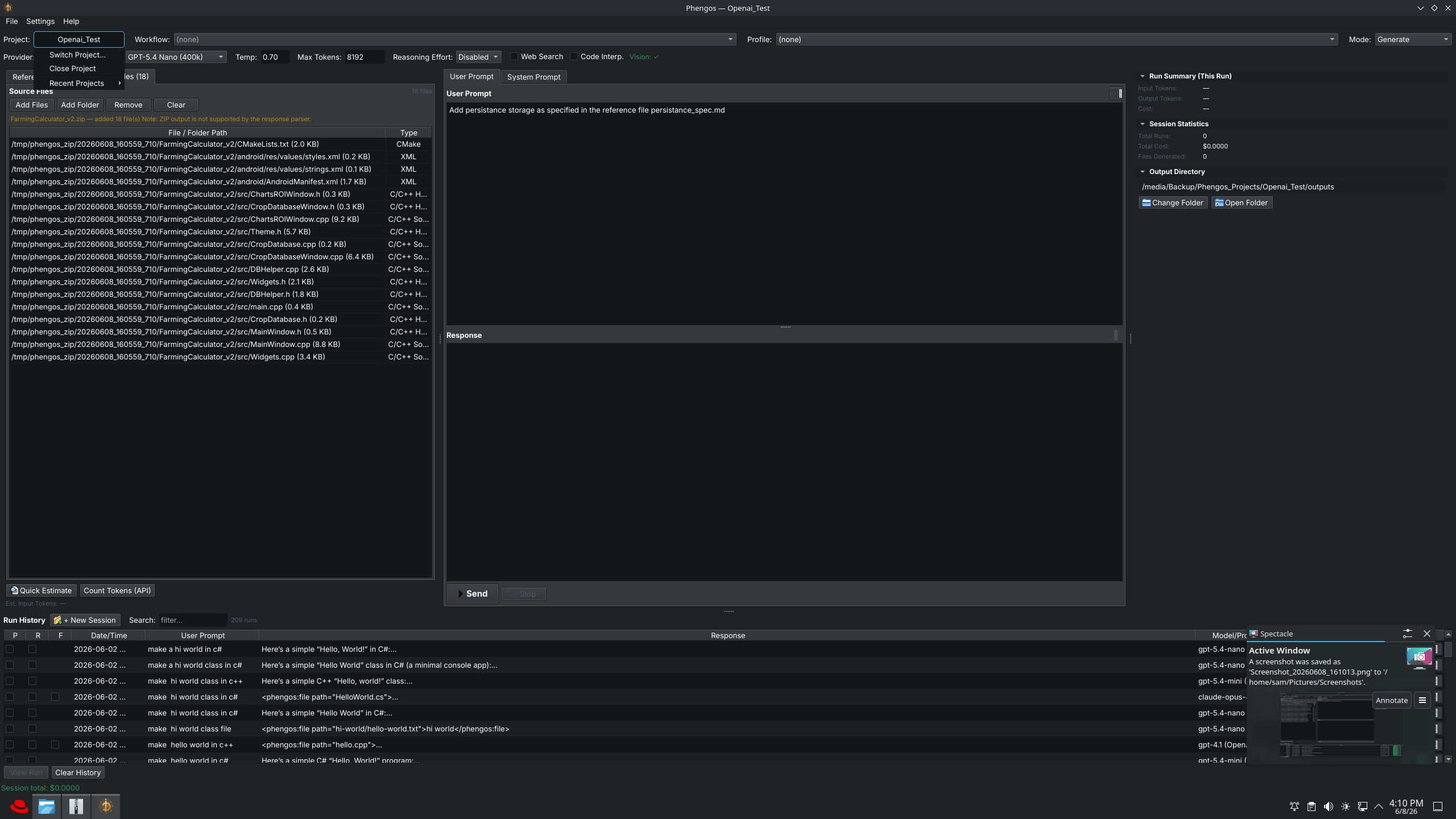
Switch Project, Close Project, and a Recent Projects submenu are all reachable from the Project field.
- Switch Project — open a different project (prompts for its folder).
- Close Project — return to the hub without quitting.
- Recent Projects — a submenu of projects you've opened before, for one‑click reopening.
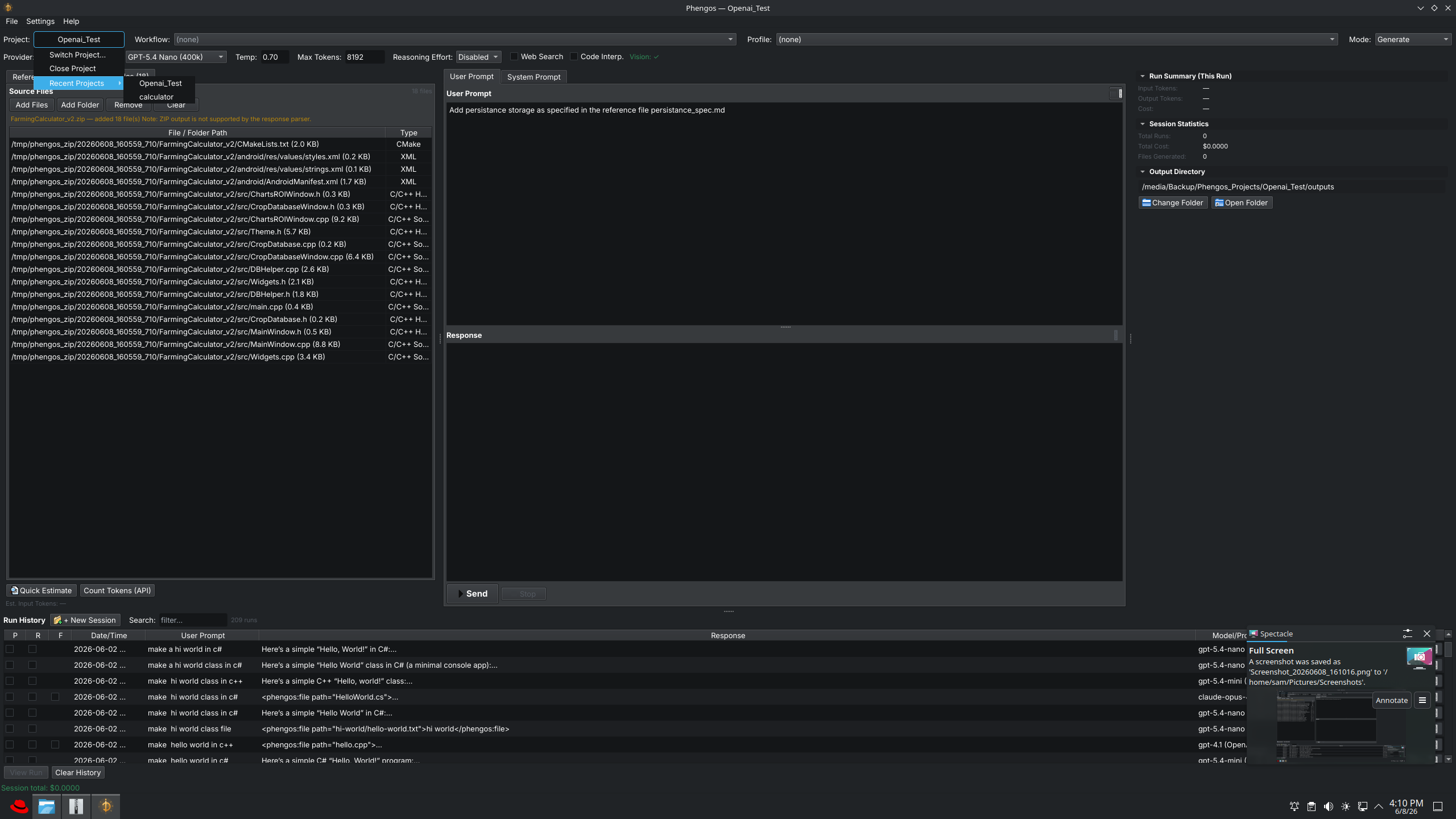
Recently opened projects are listed for quick switching.
The Project Hub (shown at launch and after closing a project) lists the same recent projects, alongside New Project and Open Project.
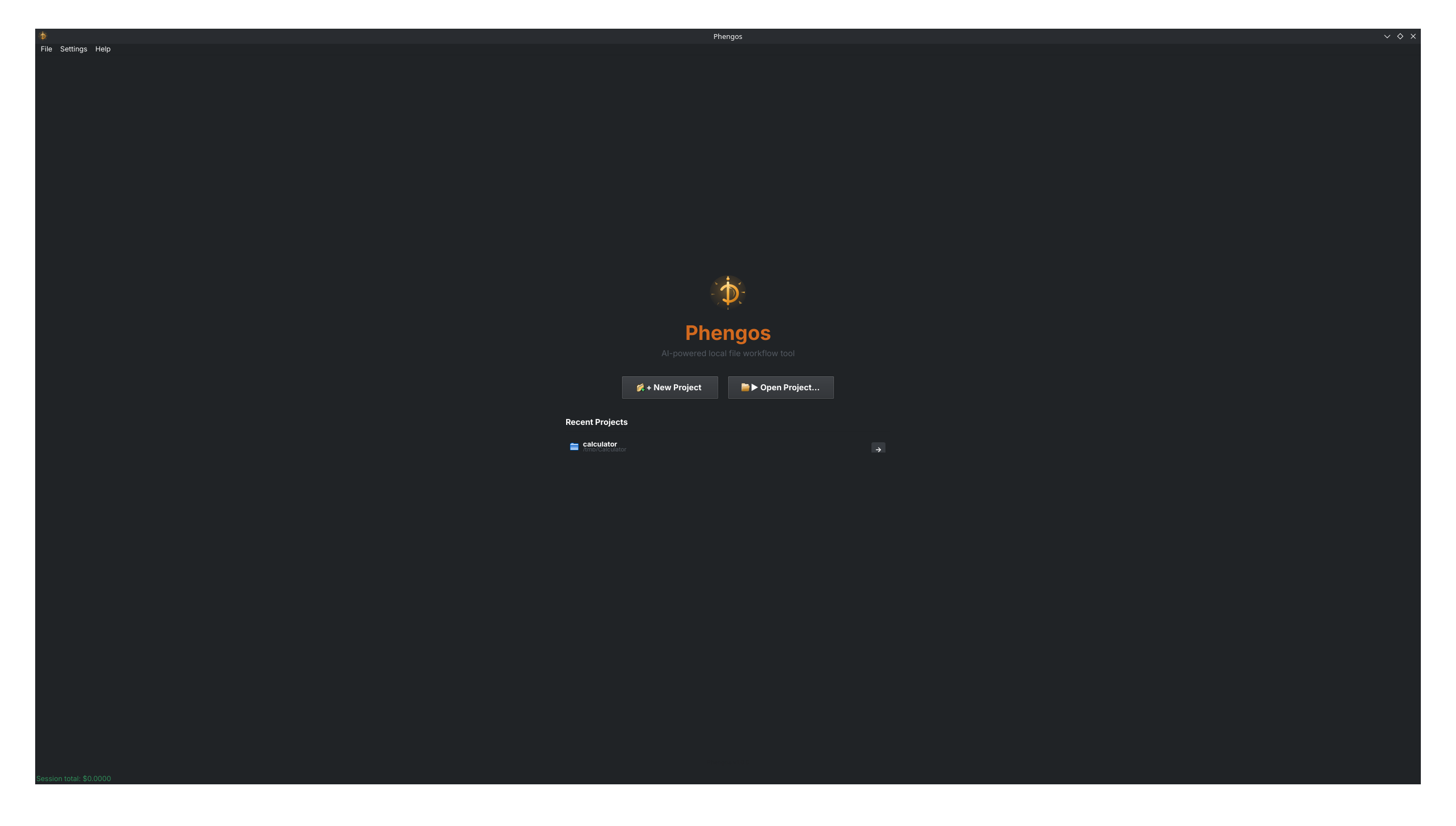
The hub's Recent Projects list reopens a project in one click.
Sessions
Within a project, work is grouped into sessions — a working context for a series of related runs. Use New Session to start a fresh group, or return to an earlier one from run history.
Saved, browsable sessions are a Pro and Enterprise feature. The Community edition focuses on the current run and does not store a session history — starting a new session clears the workspace. See Editions.
Runs and what gets saved
Every generation is a run. Each run is saved to disk as a self‑contained folder so it is fully reproducible and reviewable. A run folder contains:
prompt.txt— the user prompt,response.md— the full model response,system_prompt.txt— the resolved system prompt that was actually sent,files.json— the list of context (reference/source) files used,meta.json— run metadata: token counts, cost, provider, model, timestamp,artifacts/— any files extracted from the response, and- (Pro and Enterprise)
integrity.json— the cryptographic record (see Run History & Verification).
Because each run captures the exact prompt, system prompt, response, and outputs, you can always see precisely what produced a given result. Runs are only saved when a project is loaded — open or create a project first.
Where these files live on disk is covered in Data Locations.
Reviewing and reusing past runs
Once runs are saved, the Run History lets you search, view, verify, export, and feed past runs back into new prompts (the P / R / F context toggles). All of that — and the integrity verification that proves a saved run hasn't changed — is covered on its own page:
Run History and integrity verification are Pro and Enterprise features. The Community edition does not keep a persistent, browsable run history. See Editions.
Where to go next
- Run History & Verification — browse, verify, and reuse runs
- Files & Output — reference vs source files, and extraction
- Data Locations — where projects and runs are stored on disk