
Appearance
Phengos — Run History & Verification
A Pro and Enterprise feature. Every run is saved and listed in Run History, where you can review it, feed it back into a new prompt, export it, and verify — cryptographically — that a saved run hasn't been altered since it was produced.
Run History and integrity verification are not in the Community edition, which keeps only the current run. See Editions. How runs are stored on disk is covered in Projects, Sessions & History.
The Run History table
Run History sits at the bottom of the desktop workspace, listing past runs grouped by session. Each row shows the date/time, the user prompt, the response, the model/provider, the cost, the file count, an integrity status badge, and a set of per‑run action buttons. A search box filters the list, and New Session and Clear History sit alongside.
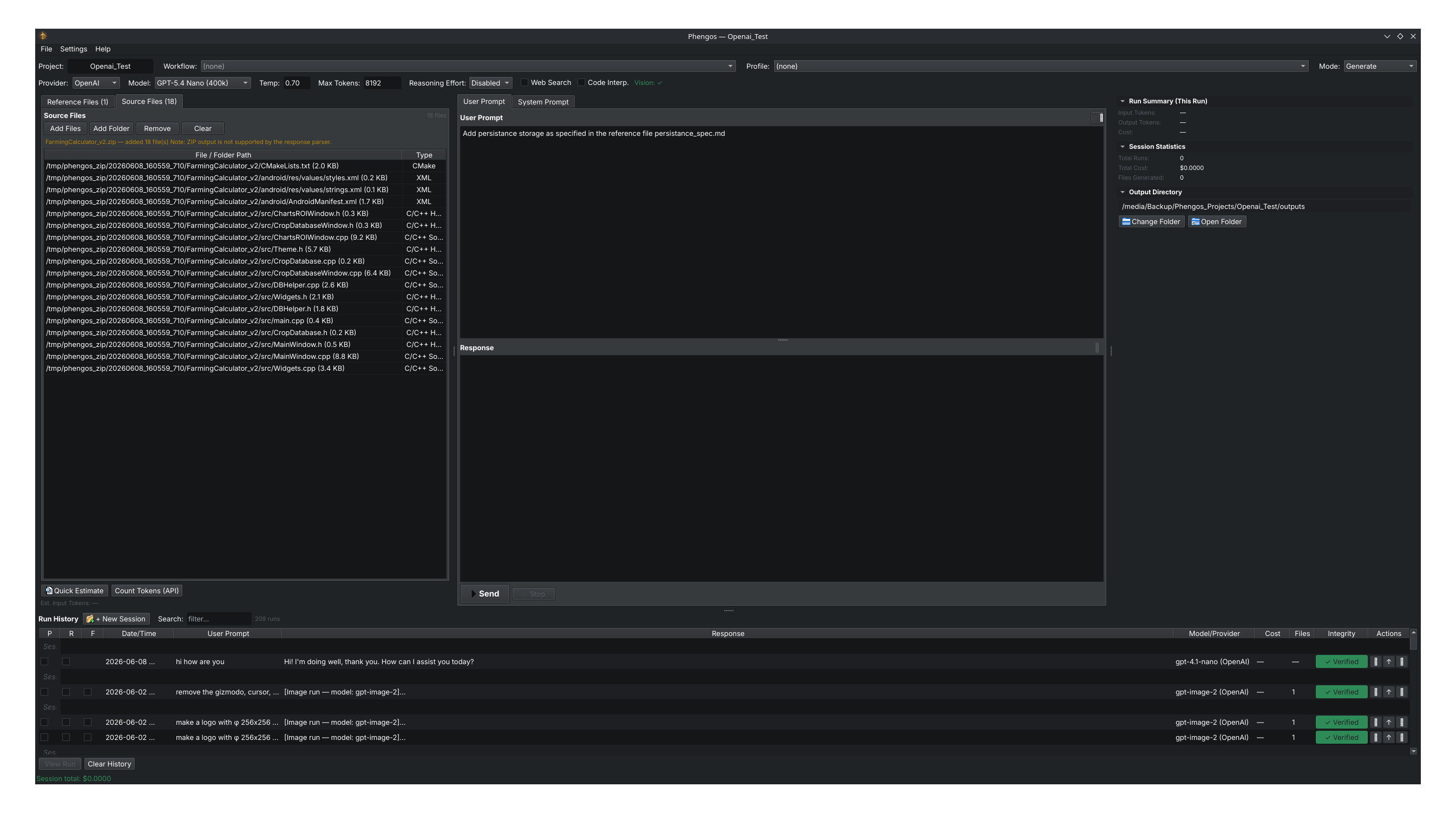
Each run is one row under its session, with the P / R / F context toggles on the left and the integrity badge and action buttons on the right.
Reusing past runs: the P / R / F toggles
Run History isn't only a record — you can feed any past run into your next prompt. Each row has three checkboxes on the left:
- P — Prompt: include that run's user prompt as context.
- R — Response: include that run's response as context.
- F — Files: include that run's generated files as context.
Tick any combination on any past runs, and when you next press Send, the selected prompts, responses, and files are prepended to your new request. This lets you build iteratively — continue from an earlier result, refine a previous response, or reuse generated files — without copy‑and‑paste. Selections are independent per run, so you can, for example, pull the files from one run and the response from another.
The same content is assembled regardless of platform. On Android the P/R/F toggles appear in the expandable footer of each history card rather than as columns.
Per‑run actions
The Actions column gives you three buttons on each run:
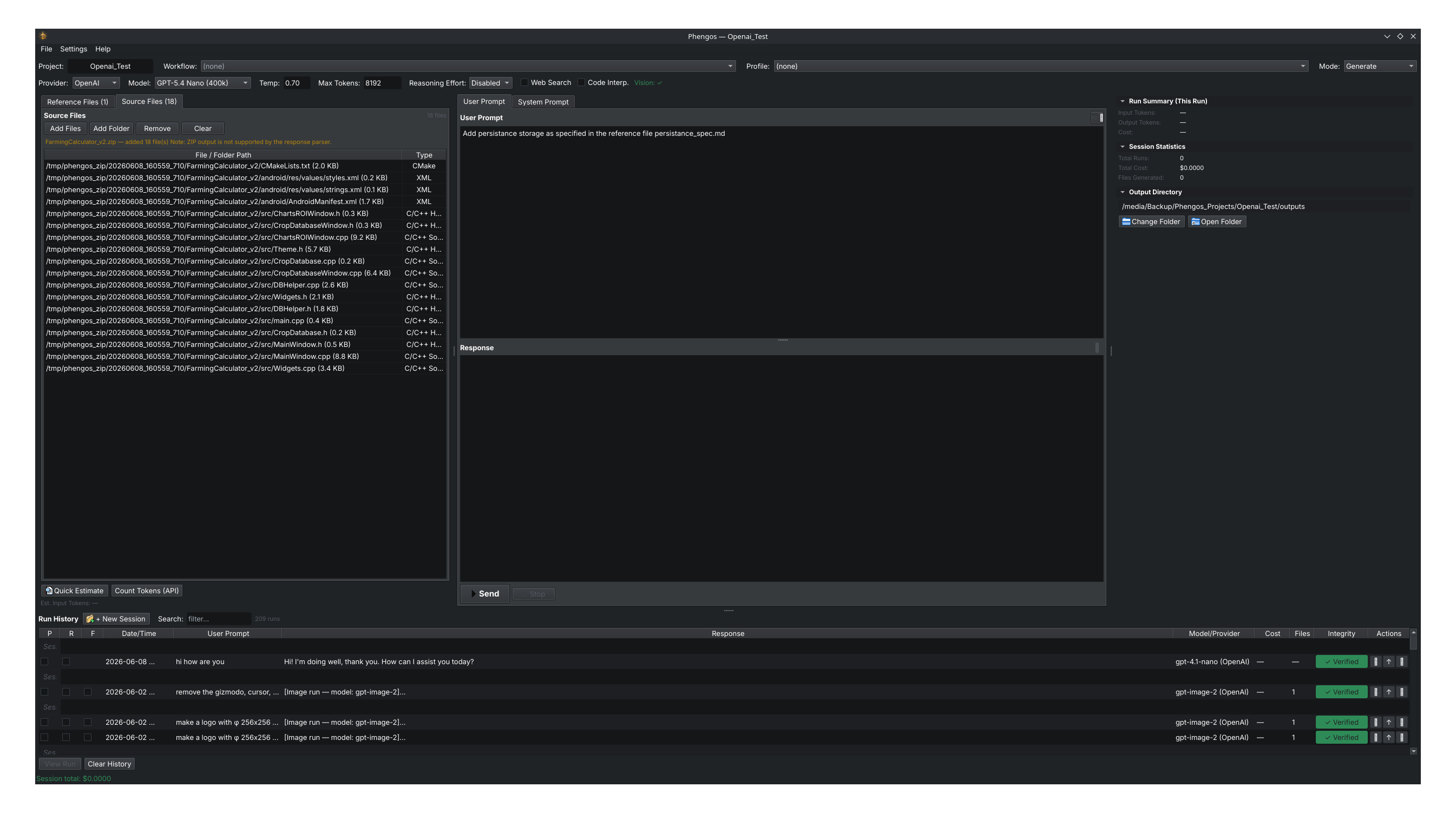
Each row carries a view button, an export (ZIP) button, and a re‑save‑files button, alongside its integrity badge.
View the prompt and response
Opens the run in a viewer with Prompt and Response tabs, titled with the run's id (for example Run: 20260602_123224_008). Use it to read exactly what was sent and returned without leaving Phengos.
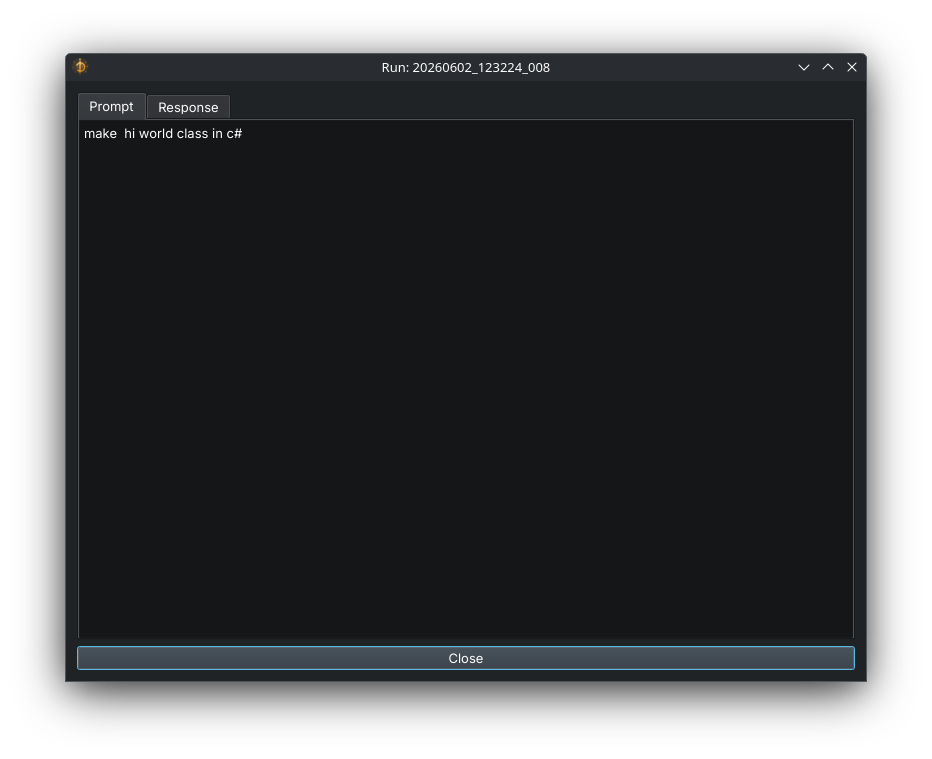
The run viewer shows the saved prompt and response for a single run.
Export a run bundle (ZIP)
Packages the whole run — prompt, response, system prompt, metadata, and any generated artifacts — into a single .zip you can archive or share. Phengos suggests a filename based on the run id (for example 20260602_123224_009.zip).
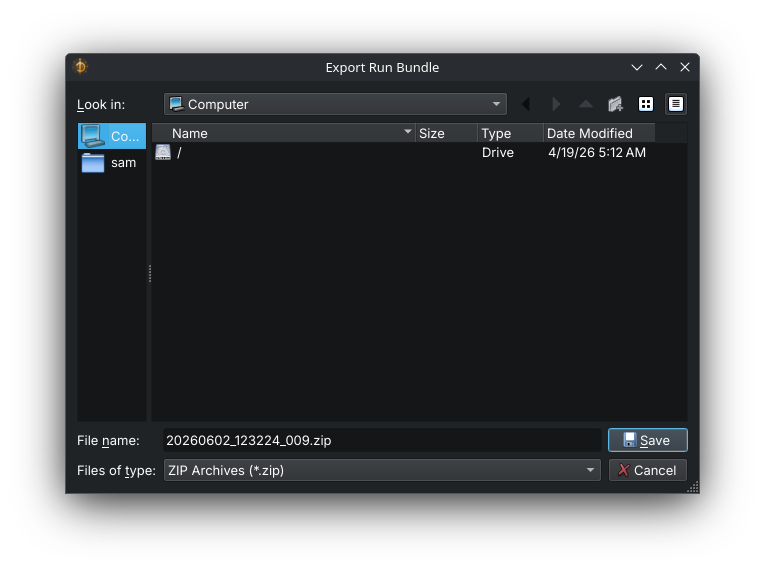
Export Run Bundle writes the complete run to a ZIP archive.
Re‑save the run's files
Re‑extracts the run's generated files to the output directory. This is useful when you've wiped or moved your output folder and want the files from a past run back on disk without re‑running the generation (and re‑paying for it).
Integrity verification
In Pro and Enterprise, Phengos can cryptographically seal each saved run and later verify that nothing has changed — a tamper‑evident record of exactly what each run produced.
What it does
When a run is saved, Phengos computes a cryptographic record of its contents and stores it as integrity.json in the run folder.
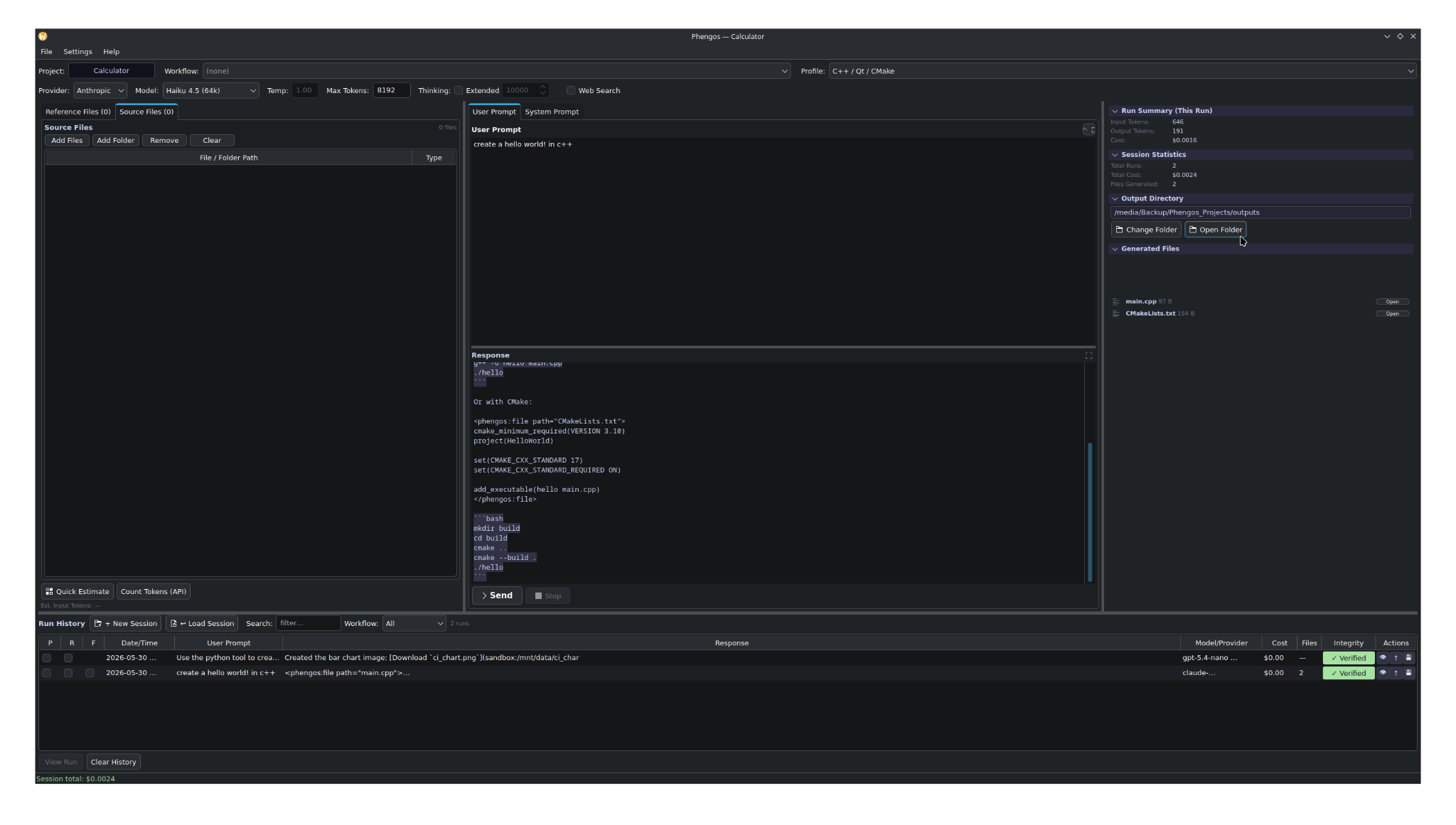
The Run History table shows an integrity status badge for each saved run.
Later — automatically in the background, or on demand — Phengos re‑checks the files on disk against that record and reports whether they still match. This answers a question that matters for anyone relying on AI output: is this saved run exactly what the model produced, or has it been changed since?
How the seal is computed
For each run, Phengos hashes (SHA‑256) the meaningful files:
system_prompt.txt(the resolved system prompt sent),prompt.txt(the user prompt),response.md(the full response), and- every file under
artifacts/(the extracted generated files).
It then computes a combined hash — a SHA‑256 over all the individual hashes, concatenated in a deterministic order. This chaining means that altering any single file, or the record itself, changes the result. The whole thing is written to integrity.json.
Verification statuses
When Phengos verifies a run, it reports one of:
- Verified — every hashed file matches its record. The run is unchanged since it was sealed.
- Modified — at least one file's content no longer matches its recorded hash. Some file (prompt, response, or an artifact) has been edited.
- Missing file — a file that was hashed is no longer present on disk.
- Chain broken — the integrity record itself is inconsistent (it has been altered).
- Unverified — there is no integrity record for this run (for example, it was saved before integrity was in use). This is informational, not a sign of tampering.
Each run shows a status badge reflecting its latest verification result. Verification runs in the background so it doesn't block your work.
How to read the results
- Verified is the normal, healthy state for an untouched run.
- Modified or Chain broken:
- If you deliberately edited a file in the run folder outside Phengos, this is expected — the seal reflects the original, and your edit changed it.
- If you did not change anything, treat the run as no longer a reliable unaltered record: something or someone modified it. See Error Reference.
- Missing file means an expected file was deleted or moved.
- Unverified simply means there's nothing to check against; older runs will show this.
What integrity does and doesn't guarantee
It does: detect any change to a sealed run's prompt, system prompt, response, or generated files after sealing, and detect tampering with the record itself.
It doesn't: prevent changes (it is tamper‑evident, not tamper‑proof), prove who made a change, or verify anything about runs that were never sealed (Unverified). It is a local integrity check of files on your disk, not a notarization service.
Used as intended, it gives you confidence that a Verified run is byte‑for‑byte what the model originally produced.
On Android
The History tab shows runs as scrollable cards (date, model, cost, files, status). Tap a card to open the run viewer; tap its chevron or long‑press to reveal the P / R / F toggles in the card footer. The actions and integrity behaviour match desktop.
Where to go next
- Projects, Sessions & History — how runs are organized and stored
- Data Locations — where run folders live on disk
- Editions — which editions include history and verification
- Error Reference — what to do about a Modified or Chain‑broken result